Introduction
DPI, or dots per inch, is a key print resolution setting that directly affects the sharpness, clarity, and appearance of your final prints. Whether you need top-quality book printing or want to print a photo book, knowing a few basic DPI basics can save time, prevent reprints, and ensure your designs look as good on paper as they do on screen.
What is DPI, and why does it matter?
An image’s DPI refers to its resolution, indicating the number of tiny dots of ink or toner that appear in a one-inch space on a printed page. More dots mean more detail. A higher DPI creates a better-defined printed image, while a lower DPI can result in pixelated prints.
Here's a simple breakdown of common DPI levels and what they mean for print quality. Knowing where your images fall can help you decide when to find a higher-quality version or edit your design.
| Resolution | Quality | Example |
| Under 150 DPI | Low |

|
| 150–299 DPI | Medium |

|
| 300 DPI and above | High |

|
If you're supplying files to an online printing company like Mixam, design your files at 300 PPI and export them at 300 DPI for printing to ensure your digital designs translate accurately to paper. Alternatively, you can use Mixam’s free Design Online tool, which allows you to create print files automatically set to the optimum resolution for printing. Simply select the ‘Design Online’ option when you choose a quote on our Instant Quote Calculator or open the tool on the left-hand side of the Artwork tab in your pending order.
Why are low-resolution images so common?
Most low-resolution issues happen because images are pulled from the web. Web-optimized graphics are often saved at 72 PPI, which keeps file sizes small and page load times fast. That’s great for screens, but not for print. Social media headers, website logos, or screenshots might look fine on a monitor but break down in print. Always go back to the original image source or request the high-resolution version.
DPI vs. PPI: What’s the difference?
PPI (pixels per inch) refers to the number of pixels displayed per inch on a screen. A pixel is the smallest graphical unit in a digital image, composed of red, green, and blue subpixels that blend at varying intensities to produce color on a screen. DPI and PPI are often used interchangeably, but they aren’t the same. For example, an image saved at 72 PPI may look sharp on your monitor, but prints poorly if stretched to A4.
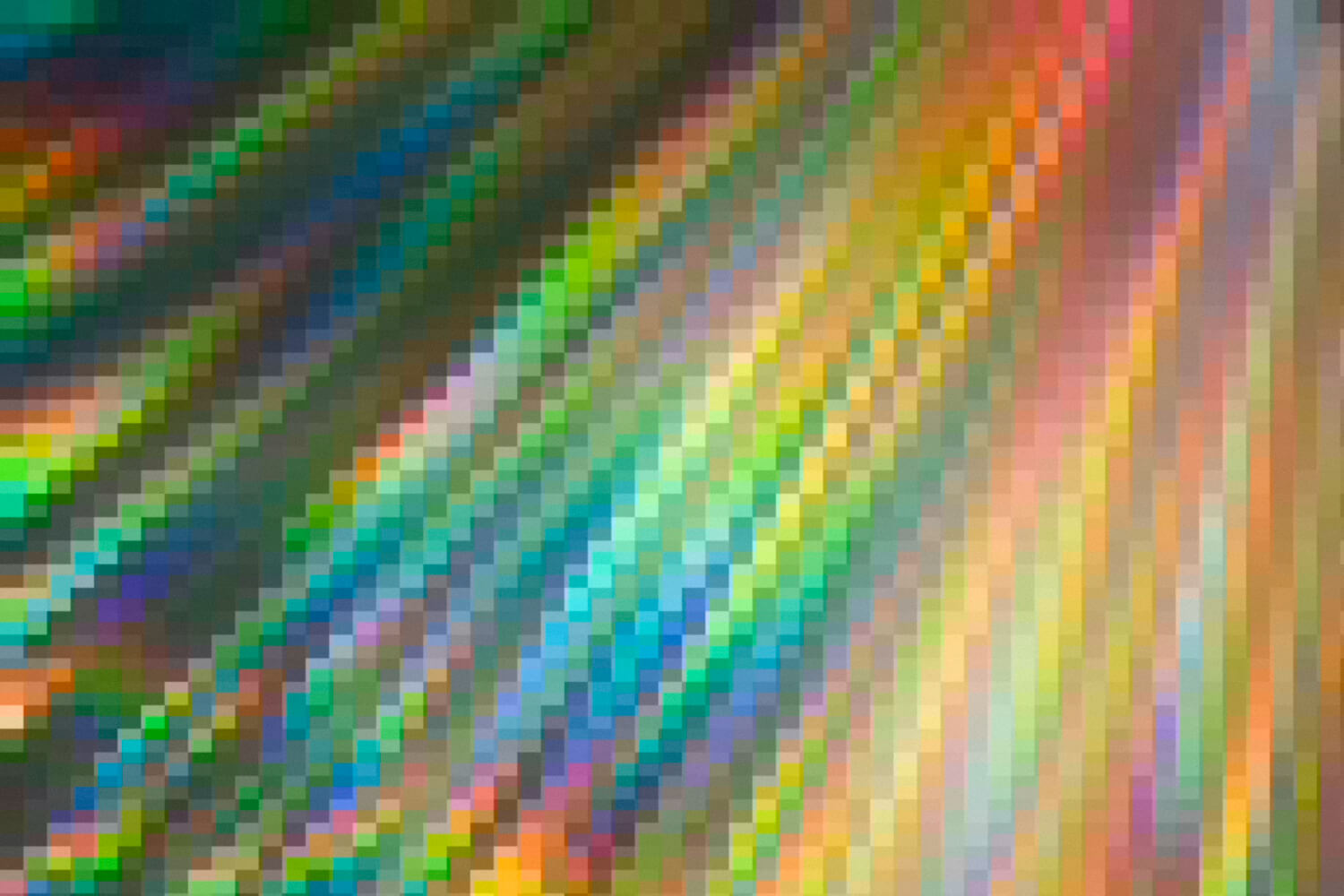
A helpful way to think about it is like building a mosaic. PPI is the number of tiles you lay out in your digital design on your screen. DPI refers to how those tiles are printed on paper. If your digital image is composed of just a few large tiles (such as a 72 PPI image), it may appear fine from a distance or on a small screen. However, if you attempt to enlarge it into a full-size mural, the tiles become noticeable, and the image loses detail, appearing blurry or blocky. That’s why it’s essential to design your files at 300 PPI and export them at 300 DPI so your ‘mosaic’ is detailed enough to stay sharp and clear when printed at full size. For more information, read our guide to pixels per inch.
The Link Between Image Resolution and Print Quality
Image resolution refers to the number of pixels in your digital file. The more pixels, the more data the printer has to create a detailed image. For best results, always start with a high-resolution file.
At Mixam, you can upload a wide variety of file types; however, the PDF format is preferred as it preserves all formatting, style, and image information from your original file and can be scaled without affecting quality. Our online system will notify you if your files fall below the recommended quality, allowing you to edit and reupload them. For sharper, clearer prints, try our AI Image Enhancer to boost image quality in seconds. If you’ve chosen grayscale printing, set the resolution to 300 DPI with a dot gain of 15%. Dot gain means the dots on a printed page will be larger than those supplied in the original files, giving prints richer tones and better contrast.
Paper type can also influence a print’s sharpness and is a key consideration for your print’s final look. For instance, ultra-smooth gloss paper tends to hold more ink, making print work better defined, while natural-looking uncoated paper absorbs ink more, resulting in softer, slightly less defined print work.
What is image upsampling?
Upsampling—manually increasing an image’s resolution—might seem like a quick fix, but it doesn’t improve print quality. For instance, if you have a 100 DPI image, it may be tempting to open it in software like Adobe Photoshop, change the settings to 300 DPI, and assume the image is now print-ready. Unfortunately, this doesn’t add any new detail. The software simply stretches the existing pixels, which can cause an image to appear soft, jagged, or pixelated when printed. It also results in larger file sizes, which can slow down upload and processing times without delivering any visual benefit. Always aim to start with a high-resolution image instead of trying to upscale a low-quality one.
Your DPI Printing Checklist
Before you upload, make sure to:
- Set your export resolution to 300 DPI
- Use original high-resolution images (not web-optimised versions)
- Save files as PDFs or other preferred print formats
- Zoom in to 100% view to check for clarity
- Double-check for blurriness or pixelation
Conclusion
Understanding DPI doesn’t require a complex setup or technical expertise — just a few best practices that make all the difference. And if you're unsure, Mixam’s online proofing system and file checking software will guide you along the way. You can also reach out to our team of print experts by chat, phone or email for support.
Visit Mixam for a free quote or try our Design Online tool, perfect for those who want to create stunning prints without extra software. For more information on how to print a book with Mixam, visit our Book Printing Guide. And to monetize your work with no upfront costs or inventory management with print on demand, visit our PrintLink Guide for a comprehensive overview.
Main Image Credit: Freepik