Introduction
Mixam’s print-on-demand service, PrintLink, now integrates seamlessly with Shopify, the leading e-commerce platform. This new capability allows creators, authors, and businesses to sell high-quality print products directly from their Shopify stores. With this integration, Mixam handles the printing, packaging, and shipping, streamlining the sales process for busy sellers.
What is Print-on-Demand?
Print-on-demand (POD) is a process in which products are printed only when orders are received, eliminating the need for bulk printing and upfront costs. Customers can order as many or as few printed copies from a Shopify store with no minimum order requirements. It also allows store owners to earn passive income without managing any logistics. To learn more, visit our blog post: What is Print on Demand?
Benefits of Print-on-Demand for Shopify
- No inventory management means products are printed upon order placement, allowing store owners to focus on other tasks like marketing their books.
- The potential profitability of print on demand means there’s no requirement for bulk purchasing. You can sell your products without the risk of overproduction or holding unsold stock.
- POD’s scalability means you can add new products and manage listings as your business grows.
- You can customise your products with a range of standout print options, including paper types, binding options, and finishes.
- Quick turnaround times allow orders to be processed and shipped quickly, keeping customers happy and encouraging repeat business.
How to Integrate Mixam with Shopify
- Log in to your Mixam account.
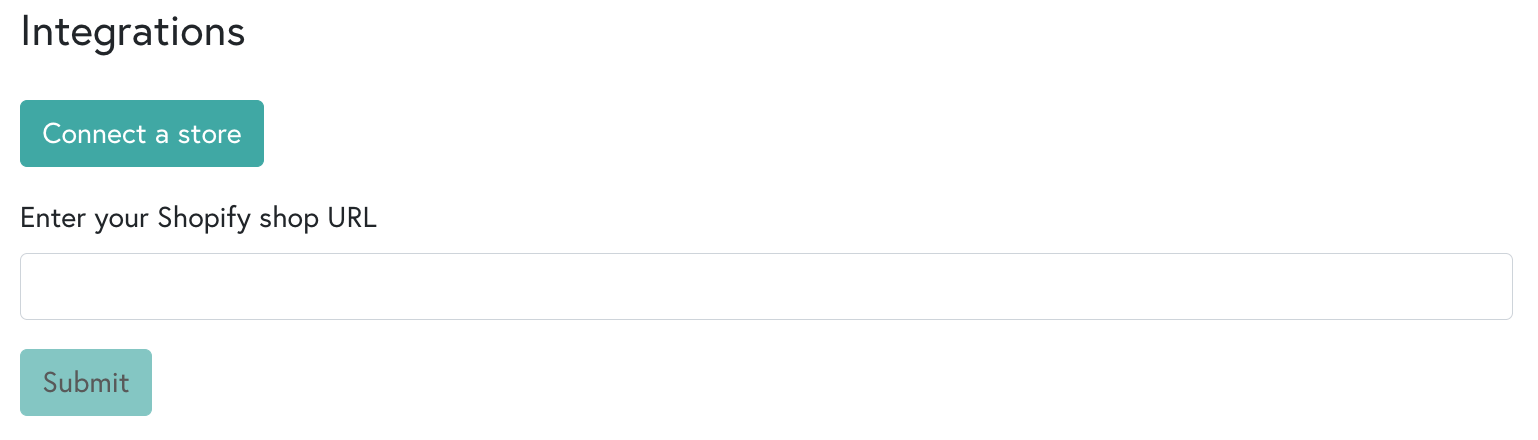
- Navigate to ‘Manage My Account’ > ‘PrintLink’ > ‘Integrations’.
- Select Shopify and connect your store URL.
- Follow the prompts to complete the connection.
How To Set Up a Chargeable Card with Shopify
- Log in to your Mixam account > ‘Setup’ > Under ‘Chargeable Account’, select ‘Connect Chargeable Card’.
- Enter your card information in the form > Click ‘Submit’ to save the information.
- Default card setup involves marking the card as your default chargeable option for transactions.
How To Add Mixam Publications to Shopify
Creators can seamlessly import their products into their Shopify store after choosing their print specifications. This automated process synchronises product details, including descriptions, images, and pricing. After importing, product listings can be customised further on Shopify with detailed descriptions and product photos.
- ‘Integrations’ section > select Shopify > click ‘Manage’ next to the connected store.
- Add a product to Shopify once you have set up your chargeable card > ‘Add to Shopify’ button will appear > select the publications you want to add and click ‘Add to Shopify’.
- A confirmation message will confirm that your Shopify store has your publication listed as a product.
- View products in your Shopify store by clicking ‘Products’ to see your newly added products.
How Shopify Orders Are Processed
Manual Fulfilment: When an order appears in your Shopify dashboard, select ‘Request Fulfilment’ to notify Mixam. Once we receive the order, we’ll handle the printing, packaging, and shipping directly to your customer, giving you complete control over which orders to send for fulfilment.
Automatic Fulfilment: Log in to your Shopify account > Go to ‘My Store’ > ‘General’ tab > ‘Order Processing’ > Under ‘After an order has been paid’, toggle the option to ‘Automatically fulfil the order’s line items.’ This setting ensures that orders are automatically sent to Mixam for printing and shipping without manual intervention. Please note this setting applies to all products in your store and may impact orders fulfiled by other partners.
How To Customise Shopify Product Pages
- Add Mixam Themes in Shopify by going to the product page where you want to add Mixam features.
- Add an Interactive Preview and Author Bio by clicking ‘Add Section’ > ‘Apps’ > ‘Mixam Interactive Preview’ and position it as desired > Repeat the process to add the ‘Author Bio’ section.
- Save and Preview the product page to see your publication, interactive elements and author bio.
Custom Products You Can Sell
- Hardcover Books are a professional and durable option, ideal for professional projects.
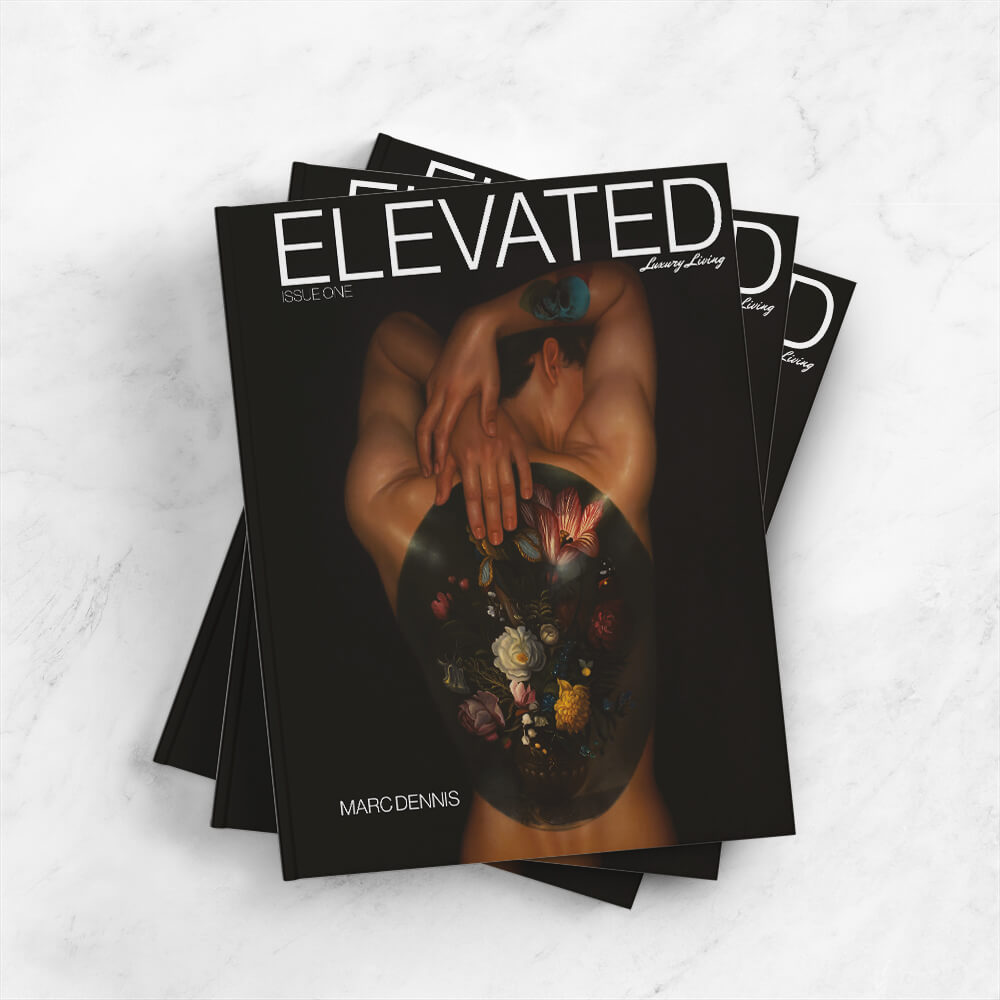
- Magazines offer an engaging format for all manner of storytelling and visuals.
- Booklets are compact and informative for a wide range of purposes, from a manual to an event program.
- Comic Books and graphic novels are dynamic options for creative storytelling.
Tips for Success with Print-on-Demand
- Use Mixam’s free downloadable templates or free 'Design Online' tool to achieve print-ready, high-quality designs.
- Optimise your Shopify product listings with clear descriptions, keywords, and images to attract buyers.
- Market strategically by using email marketing and social media to promote your products.
Conclusion
Integrating Mixam’s print-on-demand services with Shopify simplifies the selling process for creators, authors and businesses. From high-quality printing to seamless order fulfilment, you can focus on creativity while we handle the logistics. Log in to your account and integrate your Shopify store today.
For more news and inspiration, check out the array of posts on Mixam's Blog and visit our Support section for helpful guidance and advice on all things print.
Main Image Credit: Shopify