What is Shopify?
Shopify is a leading e-commerce platform that enables you to sell custom products worldwide. Users can build an online shop or store with highly customisable design elements, allowing them to personalise a website with a broad reach. You can automate order fulfilment by connecting your Shopify store to Mixam through the Integrations tab. When a customer places an order, Shopify sends the details to our system, allowing us to handle printing, packaging, and delivery. You can read about Shopify and see membership costs on their Pricing page.

| Mixam | Shopify | |
| Publisher | Creates and owns PrintLink publication(s) | Store owner and seller |
| Customer | Purchases publication(s) from a PrintLink URL | Purchases from the Shopify Store or Product page URL |
Why use Shopify?
|
|
|
Connecting Your Shopify Store
Create a Shopify account and set up your store before enabling and listing your PrintLink publications.
Log in to your Mixam account > My Account > PrintLink tab > Integrations > Select Shopify > Follow the on-screen prompts.
Alternatively, you can install the Mixam: Print On Demand app for free on Shopify’s App Store.
What happens to orders when you uninstall Mixam: Automated updates to the status of orders already accepted and in progress will stop. Integrated products will be removed, preventing new sales, and the links to your product pages will no longer work. The safest option is to disable all Mixam products for new orders first, then wait until all orders in progress are fulfilled before removing the app.
Setting Up a Chargeable Card
You can link any debit or credit card registered in any region.
Log in to your Mixam account > My Account > PrintLink tab > Settings > Chargeable Account > Connect Chargeable Card > Enter your card information > Submit.
Adding and Deleting Products on Your Store
Set up a chargeable card before completing this process, and a publication must be active and approved before adding a product to your Shopify store.
Log in to your Mixam account > My Account > PrintLink tab > Integrations section > Select Shopify > Manage (next to the connected store) > Add a product to Shopify > Add to Shopify button > Select PrintLink publication(s) > Add to Shopify. A confirmation message will appear stating that your product has been listed in your Shopify store. Click Products to view all listed items. When integrated with Mixam, Shopify displays the total price (production cost, commission, and delivery fee), title, flipbook preview (if added), and a thumbnail image of the front cover. You can also edit, describe and categorise your product on Shopify to customise the listing further.
This automated process synchronises product details, including descriptions, images, and pricing. After importing, you can further customise product listings on Shopify.
Deleting a product: Customers cannot order a product if it has been deleted. Existing orders will continue if fulfilment is requested and Mixam has received the order.
Updating Shopify products: Once you’ve edited, reconfirmed, and reapproved your publication, the files will instantly update on Shopify. You don’t need to remove and re-add the product. The front cover thumbnail will remain unchanged.
For more information and setup instructions, watch our ‘How to Add a Product to Your Shopify Store’ video tutorial on YouTube below.
Commissions
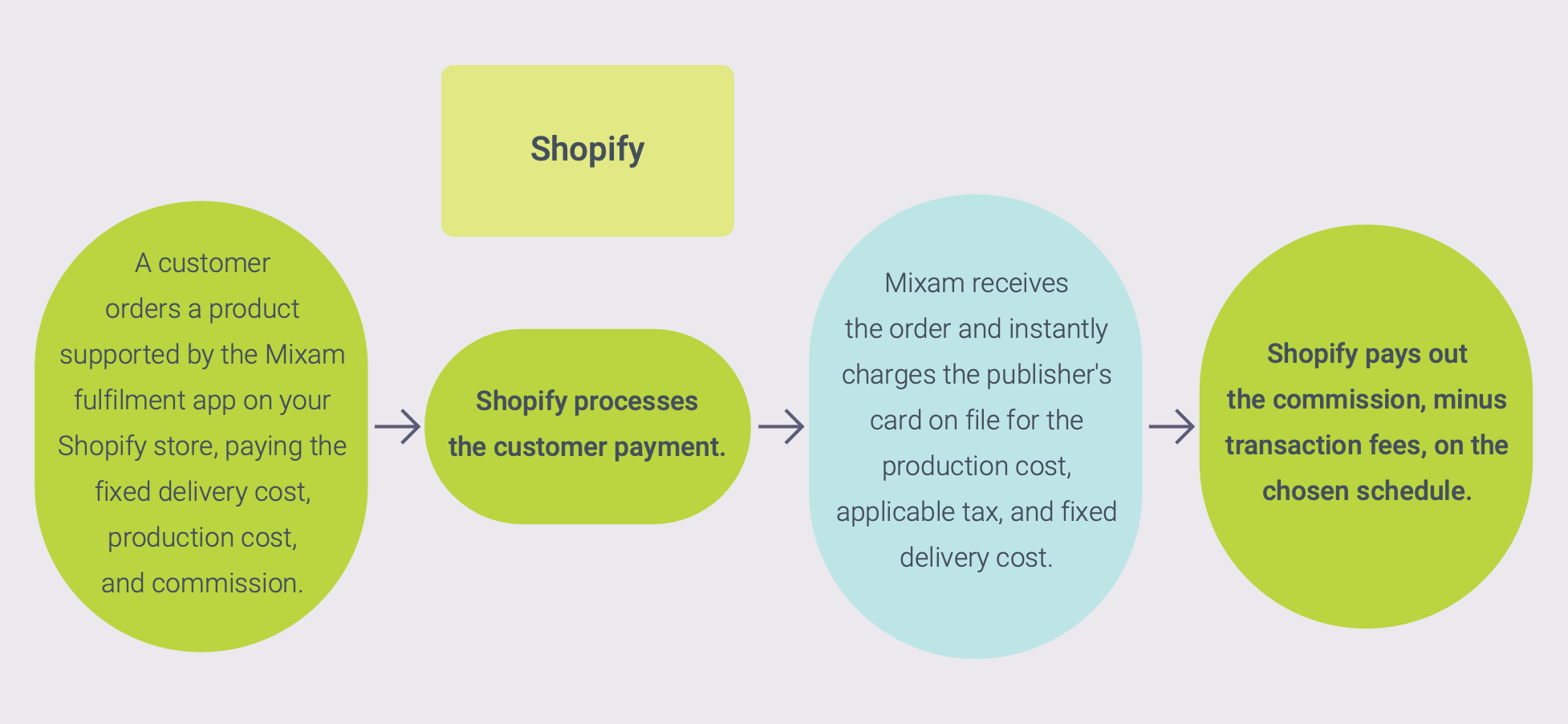
Commissions earned through integrated sales come from Shopify. Payouts are your profit from the Mixam pricing strategy minus the Shopify transaction fee. You can choose when you get paid based on the payout schedule set in Shopify. This schedule could be the next working day, a selected day of the week or a date in the month.
You can choose to charge your customer at checkout, upon fulfilment, or manually. These settings also affect your payout schedule. Mixam recommends using the default Shopify settings, which charge your customer at checkout for quick commission payouts.
If you change your pricing strategy, it will instantly update in Shopify. Any fluctuations in Mixam production costs will synchronise every 12 hours.
Manual vs Automatic Fulfilment
| Feature | Manual Fulfilment | Automatic Fulfilment |
| Order Processing | Request fulfilment for each order individually. | Mixam automatically receives orders upon payment. |
| Control | You have complete control over which orders to send for fulfilment. | No approval needed; all orders are processed automatically. |
| Setup | No setup required. Simply select 'Request Fulfilment' on the order detail page in Shopify when you receive an order. |
Log in to your Shopify account > My Store > General tab > Order Processing > Under 'After an order has been paid', toggle the option to 'Automatically fulfil the order's line items'. (Requires enabling auto-fulfilment in Shopify settings). |
| Flexibility | Ideal if you want to review orders before they are processed. | Best for a hands-off approach, ensuring fast order processing. |
| Impact on Fulfilment Partners | No effect on fulfilment methods. | Applies to all products in your store and may impact orders fulfilled by other partners. |
| Turnaround | You are responsible for releasing the order to fulfilment, which affects production and delivery speed. This method may slow processing and require monitoring. | The fastest way for Mixam to receive your orders and start production. |
Interactive Preview Integration
Log in to your Shopify store > Products > Select your PrintLink publication > Theme template > Eye icon (View template) > A preview will appear.
Left-hand toolbar: Template > Add Section > Apps > Mixam Interactive Preview > Save button.
How to view the interactive preview on a live page: Products > Select your PrintLink publication > Preview button.
How to remove the interactive preview on a live page: Shopify > Select product > Templates > Delete section.
Shopify Order Notifications
| From | To | Content | Can Be Turned Off, On, or Edited |
| Shopify | Customer | Order confirmation | All |
| Mixam | You | Someone purchased from your Store | Turned Off |
| Shopify | You | Someone purchased your publication | All |
| Shopify | Customer | Order in transit | All |
| Mixam | You | Order in transit | On (fixed) |
| Shopify | Customer | Out for delivery, out for local delivery & delivered | All |
Cancellations, Refunds and Returns
Cancellations
Store owners can select an order and request cancellation in their Shopify account. Cancellation requests are automatically rejected with a prompt to contact Mixam customer services due to our fast production speeds. Our team will determine if the cancellation is possible based on the production status.
Refunds
Store owners can request a refund by emailing Mixam at care@mixam.com. Include the Mixam Order ID, customer name, issue details, and photos (if applicable). Report delays, damage, or loss within 5 days of the expected delivery date. Report quality or quantity issues within 10 days. Mixam may request more evidence of missing, damaged, or defective items. Depending on the case, Mixam may offer free reprints, replacements, or a full or partial refund within 1-3 working days. Refunds from Mixam to you do not affect customer refunds. You are responsible for handling customer refunds in your Shopify Store. You may choose to offer a full or partial refund for a customer’s product cost or shipping fee without receiving a refund from Mixam or contacting us beforehand.
Returns
We recommend stating in your product/store terms that integrated products are non-returnable if a customer changes their mind after fulfilment. Since print-on-demand items are produced only after purchase, returns are not necessary unless there is a quality issue that requires our team to inspect the product for a refund request.
Now that you know how to begin selling with Shopify, you can find out what our service includes for PrintLink Customers.